
Sales, invoices and inventory should tell the same story. When a product is sold, the sales record should identify what was sold, the invoice should document the transaction, and the available stock should reflect the quantity that moved out.
For a small business, connecting these activities creates a clearer operational workflow:
Customer → Sale → Invoice → Stock Out → Stock Ledger → Sales Report
This practical guide explains how to organize sales and inventory together, what to check when recording a sale, and how connected records can make stock quantities easier to understand.
What Is Sales and Inventory Management?
Sales and inventory management connects customer sales with the products and quantities leaving inventory. Instead of recording an invoice in one place and manually reducing stock somewhere else, the transaction can be part of one connected workflow.
Suppose Product A has 250 units available and a customer buys 30 units:
250 available units − 30 sold units = 220 units remaining
The sales record explains the transaction while the inventory record reflects the resulting quantity.
ERP Screenshot: Sales Management

Why Sales, Invoices and Stock Should Be Connected
When these records are maintained separately, common problems can appear. A sale may be entered without reducing stock, a stock quantity may be changed without a matching sales record, or an invoice may contain a different quantity from the inventory movement.
A connected process is easier to follow:
Select customer → Add products → Confirm quantities → Record sale → Generate invoice → Reduce inventory → Review reports
Step 1: Keep Product Records Accurate
Before recording sales, products should have clear names, SKUs or barcodes, sale prices and current quantities. Consistent product records reduce the chance of selling or adjusting the wrong item.
| Product | SKU | Sale Price | Available Stock |
|---|---|---|---|
| Product A | PROD-001 | $15 | 250 |
| Product B | PROD-002 | $30 | 95 |
| Product C | PROD-003 | $12 | 180 |
For the stock-control foundation, read How to Track Inventory Accurately in a Small Business.
Step 2: Select the Customer and Products
A sales transaction should identify the customer when customer-level tracking is required and should use existing product records rather than manually typed product descriptions wherever possible.
For example, a customer purchases 10 units of Product A at $15 and 5 units of Product B at $30:
Product A: 10 × $15 = $150
Product B: 5 × $30 = $150
Sales value represented: $300
Step 3: Confirm Available Stock Before Completing the Sale
Checking stock before confirming a sale helps prevent users from relying on quantities that are no longer available. The expected quantity after the transaction can be calculated before the sale is finalized.
If Product A has 250 units and 10 are sold:
250 − 10 = 240 units
Step 4: Generate a Clear Sales Invoice
The invoice provides a customer-facing record of the sale and should remain consistent with the underlying transaction. Product descriptions, quantities, prices and totals should match the sale that affects inventory.

Step 5: Reduce Stock When the Sale Is Recorded
When a completed sale represents goods leaving inventory, the relevant stock quantity should decrease. If a product had 100 units and 8 units were sold, the expected remaining quantity becomes 92.
Opening quantity − Stock sold = Remaining quantity
100 − 8 = 92
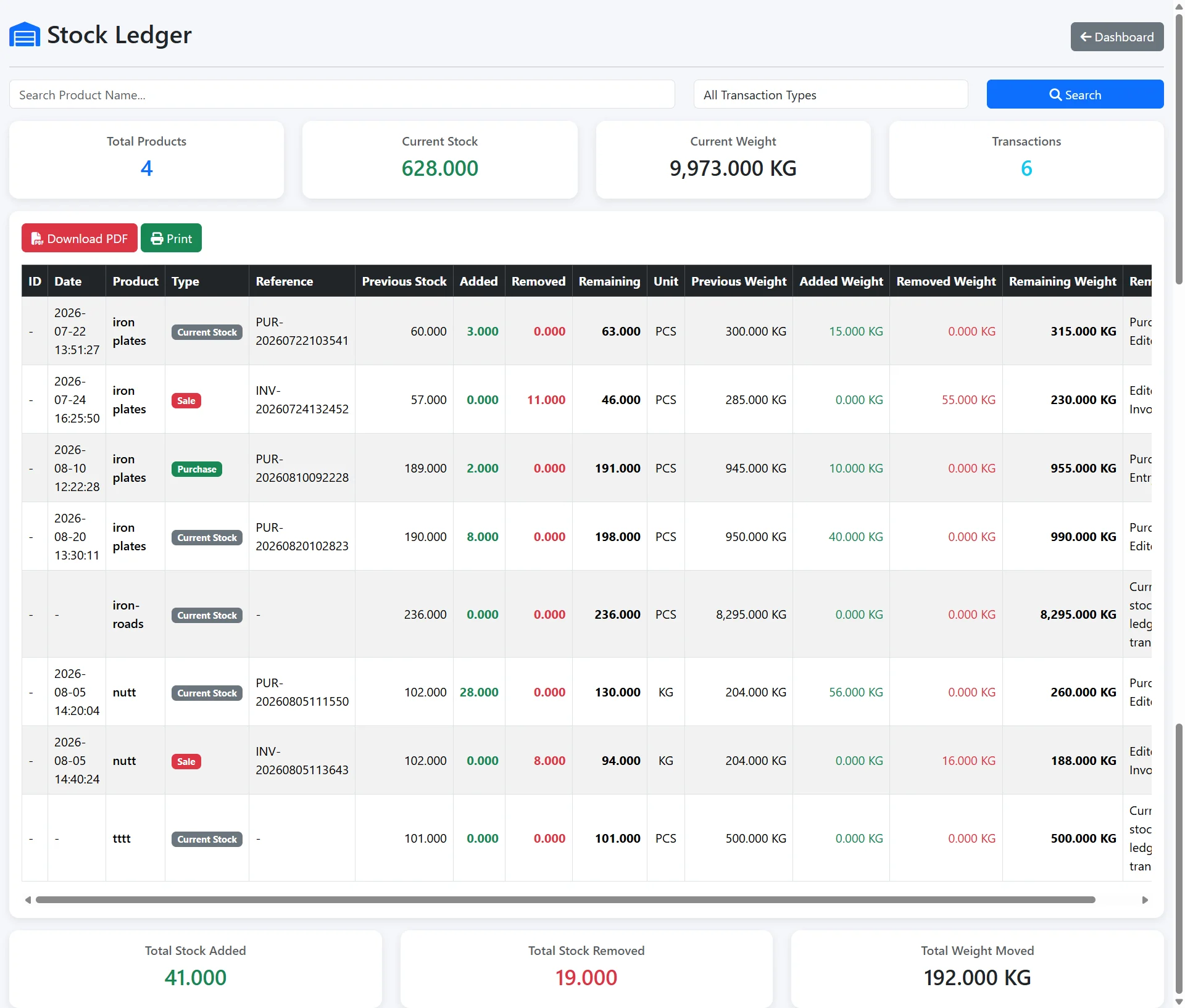
Step 6: Keep the Stock Ledger in Sync
The current quantity tells you what is expected to remain. The stock ledger explains how that balance was reached.
| Activity | Stock In | Stock Out | Balance |
|---|---|---|---|
| Opening stock | 100 | — | 100 |
| Purchase | 50 | — | 150 |
| Sale | — | 20 | 130 |
For more detail, see What Is a Stock Ledger and How Does It Work?.
ERP Screenshot: Stock Ledger
Step 7: Review Sales Reports
Individual invoices explain individual transactions, while sales reports provide a broader view of activity over a selected period. Reports can help users review transaction history and compare operational records.

Explore the related Inventory Reporting Software features.
A Complete Sale-to-Stock Example
Consider a small business with 300 units of an item in stock. A customer purchases 40 units. After the sale is recorded, the expected inventory becomes:
300 − 40 = 260 units
The connected records should explain the same event: the customer record identifies the buyer, the sale records the transaction, the invoice documents the products and quantities, the inventory balance becomes 260, the stock ledger records 40 units going out, and the sales report includes the transaction.
How Purchases and Sales Work Together
Purchases normally bring goods into inventory while sales move goods out. Together they help explain the running quantity.
Opening Stock + Purchases − Sales = Expected Closing Stock
For example: 500 + 200 − 150 = 550 units.
To understand the stock-in side of the workflow, continue with How to Manage Purchases, Suppliers and Stock Together.
Common Sales and Inventory Mistakes
Recording a Sale Without Reducing Stock
This can leave the system showing more inventory than the business expects to have available.
Reducing Stock Without a Sales Record
The quantity may change, but the transaction history will not clearly explain why.
Selling the Wrong Product Record
Similar names can create errors. SKUs, barcodes and clear descriptions can help users select the correct item.
Entering the Wrong Quantity
A quantity-entry mistake affects both the sales record and the expected stock balance.
Using Different Invoice and Sale Values
The customer-facing invoice and underlying sale should represent the same transaction.
How Inventory Accounting Connects Sales With Stock
Inventory Accounting brings sales, products, customers, invoices, stock movements and reporting into the wider ERP workflow.
Customers → Products → Sales → Invoice → Stock Ledger → Reports
See the commercial feature overview and more real ERP screenshots on the Sales Inventory Software page.
Try the ERP Demo
You can also open the external ERP login and explore the demonstration dashboard.
Demo Username: demo
Demo Password: Demo@12345
Open ERP Demo Login View Demo Information
The demo account is intentionally restricted. Module access depends on the permissions enabled for the public demonstration environment.
Real ERP Screenshots: Sales, Invoices and Inventory
These real ERP screens show the connected sales, invoicing, stock-ledger and reporting workflow described in this guide.
Software for Sales, Invoicing and Inventory
Sales and inventory management software for small business should connect each sale with the quantity leaving stock. This reduces the need to create a sales record and then maintain a separate manual inventory adjustment.
For businesses that issue invoices, inventory management software with invoicing can keep the customer transaction, invoice and stock movement within one workflow. An inventory and invoicing software for small business can therefore provide a clearer link between what was sold, what the customer was billed and what remains available.
A practical invoice and inventory management software setup should also make sales history easy to review. Businesses comparing sales tracking software with inventory can look for product-level quantities, invoice records, stock-ledger entries and sales reports that reconcile with one another.
Frequently Asked Questions
What is sales inventory management?
It is the process of connecting product sales with the inventory quantities and transaction records affected by those sales.
Should a sale reduce inventory?
When a completed sale represents physical goods leaving stock, the corresponding inventory quantity normally needs to decrease.
Why is a stock ledger useful after a sale?
It provides movement history that helps explain how the current stock balance was reached.
Why connect customers with sales?
Customer-linked transactions make it easier to review which sales belong to a particular customer when that level of tracking is required.
Do I still need physical stock counts?
Yes. System records show the expected quantity based on recorded transactions; physical counts help verify the quantity actually present.
Build a Connected Sales Process
A reliable sales workflow connects the customer transaction with the invoice, stock movement and reporting rather than treating each record as a separate task.
Customer → Sale → Invoice → Stock Out → Stock Ledger → Reports
Continue with Article 3: Purchases, Suppliers and Stock, explore Sales Inventory Software, or use the demo login above to see the ERP interface.
See the connected inventory invoice software workflow for customer billing, product sales, stock records and printable invoices.
Connect sales, invoices and customer activity with accounting software with inventory management.